What it does
EverQuest Legends has no in-game quest log. EverLegendsQuest reads the game's own chat log file as you play and reconstructs what you are doing: which quests you have started, which steps are done, how many items you still need, and what you have completed. It shows all of that in a browser page you can keep on a second monitor.
It does not modify, inject into or read the running game. It reads two things from the game's install folder: the chat log the game writes, and the character list (_characters.ini) for names, which stay on your machine. It makes exactly one change there, and only when you click Enable logging: it adds Log=TRUE to eqclient.ini so the game writes its chat log, keeping a backup of the file next to it. It works fully offline with the quest data bundled inside it. Signing in adds quest and catalog updates from the community server. Uploading anything is a separate switch that stays off until you turn it on.
Install and first run
- Download EverLegendsQuest-Setup.exe and run it. The installer is not code-signed, so Windows SmartScreen may say "Windows protected your PC": choose More info, then Run anyway.
- Launch EverLegendsQuest from the Start Menu. Two things open: the small companion window on your taskbar, and the tracker page in your browser.
- The first time, the tracker page shows a One-time setup: turn on chat logging card. The game only writes its chat log when
Log=TRUEis set ineqclient.ini. Close the game if it is running, click Enable logging, and the app adds that one line (a backup of the file is kept next to it). Start the game afterwards and the page fills itself in as you play. - Optionally sign in or create an account to receive quest updates. You need an invite code from the project owner to create an account.
Updates
The app checks the download page shortly after it starts and every few hours. When a newer version exists, a gold Update available banner appears at the top of the tracker page and the companion window shows a Get update button. Nothing is downloaded or installed on its own: you download the installer and run it, it stops the running tracker for you, and your data and settings are kept.
The companion window
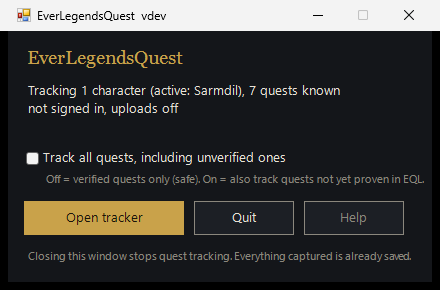
- Status line. How many characters are being tracked and which one is active, how many quests the app knows, whether you are signed in, and whether uploads are on. It also warns when EQL chat logging is off or the game install could not be found.
- Track all quests, including unverified ones. Off means only quests proven against a real EverQuest Legends log drive tracking. On also tracks quests authored from catalog data that nobody has confirmed yet. It applies immediately and is remembered. See verified vs. track all.
- Open tracker. Opens (or reopens) the tracker page in your browser. You can close the browser tab any time; tracking continues.
- Quit. The clean shutdown: pending uploads are flushed, the database is closed, and the process exits. Closing the window with the X does exactly the same.
- Help. Opens this page.
Launching the app again while it is already running does not start a second copy; it just brings the tracker page back up.
The header, button by button

- Search box. Type an item, NPC or quest name; results appear above your character. Press / anywhere on the page to jump to it, Esc to clear. See Search.
- ● live. The page is connected to the tracker. If it says disconnected, retrying, the tracker has stopped or is restarting.
- N quests known. How many trackable quest definitions the app currently has (bundled ones plus anything synced).
- Sign-in state. not signed in, or your email and the sync version you are on. Hover it for the server address and the last sync time.
- upload on / off and the share / stop button. This is the upload opt-in. share turns anonymized uploads on after a confirmation that repeats exactly what is sent; stop turns them off again. Only visible when signed in. Details under Sharing.
- sign out. Forgets the sign-in on this computer. The tracker keeps working with the data it already has; syncing stops until you sign in again.
- The time. When the page last received an update from the tracker.
- also: Name. Your other characters. Click one to pin it; follow active goes back to following whichever log is moving.
- verified only / all quests and the track all / verified only button. The same switch as the companion window checkbox.
- report a problem. Opens the report form (bug, bad data or missing data). See Reporting.
- quit. Stops the tracker (same as the companion window's Quit) after a confirmation.
- help. This page.
Sign in / create account
Until this install is linked to an account, the tracker page shows a Sign in card at the top with a Create account tab. Creating an account needs an invite code from the project owner. You can also do both on the website; the app links itself the first time you sign in from it.
$name before anything leaves your machine. The full promise is in the data contract.Once signed in, the app pulls quest and catalog updates when it starts and every 15 minutes. Nothing is uploaded unless you turn sharing on.
Your quests
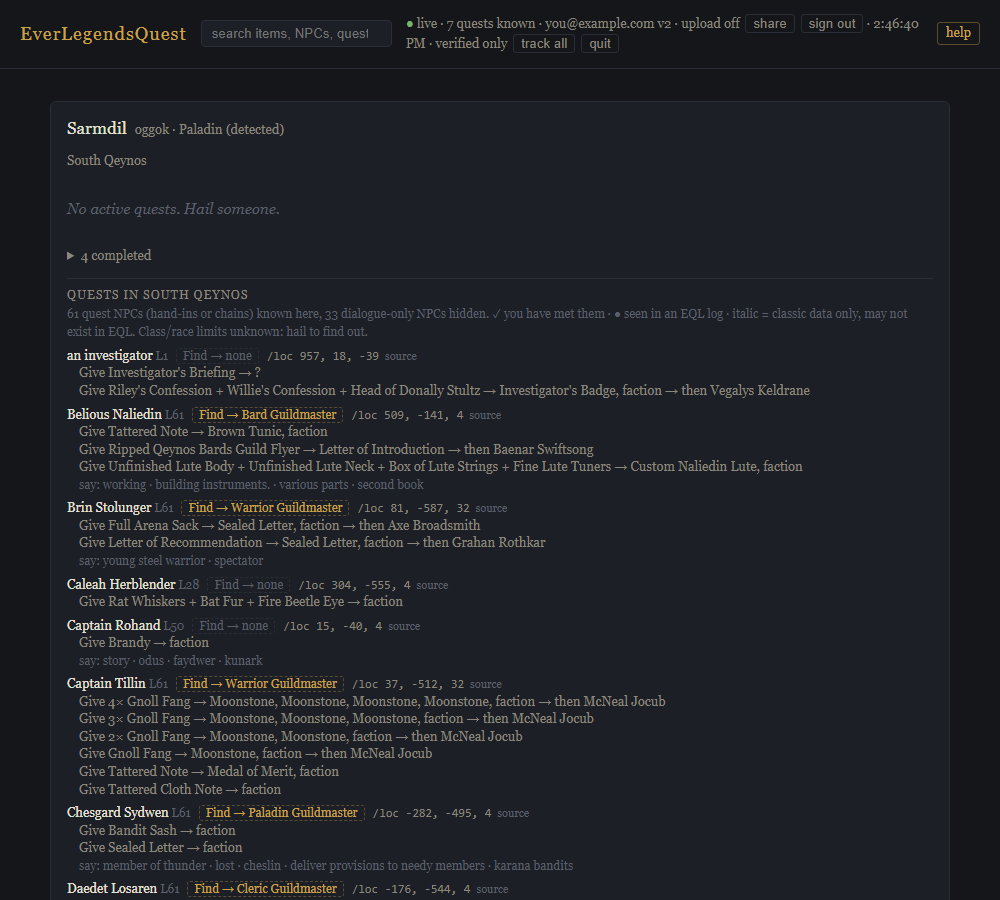
The character panel shows the character's name, server and classes. EQL loadout changes are not written to the log, so classes are inferred from what you actually do: the spells you cast, class-specific skill-ups such as Backstab or Tracking, innate abilities, and guildmaster prompts. Your level (from "You have gained a level!") sharpens this: a level-7 caster of Center can only be a Cleric, because Paladins get it at 20. A loadout change shows up as a burst of "granted"/"gained the ability" lines the first time a class is used, and the previous classes are dropped at once. They settle after a few casts and are marked (detected). If detection is wrong or slow, click (detected) (or (set classes)) to pin up to three classes yourself; pinned classes stay until you choose Back to detection.
- Active quests appear as soon as the log proves you started one (hailing the right NPC, hearing the right line). A dashed frontier tag marks a quest drafted from the catalog (see Frontier quests). Each step shows a checkmark when done and a counter such as 3/4 for collect steps. If you looted the items before the quest started, the counter begins at what your log already shows (loot from the last two days counts).
- Completed quests collapse into a single line you can expand.
- recent at the bottom is the last few quest-shaped lines the tracker recognised in your log: hails, NPC dialogue with [bracketed keywords], loot, kills, turn-ins, zone changes. It is the quickest way to confirm the log is flowing.
Quests in this zone
Below your quests, quests in <zone> lists every quest-giving NPC catalogued for the zone you are standing in, so you can find things to do. The data comes from EQLBase's classic-era catalog and is unverified for EQL until players confirm it.
| Marker | Meaning |
|---|---|
| Gold name | An authored, trackable quest names this NPC. |
| ✓ after the name | You have met this NPC in your own log (hailed, heard, traded with, or targeted). |
| ● seen in EQL by 3 players | An EverQuest Legends log has contained this NPC: it exists in EQL. The count is how many sharing installs have seen it (EQLBase's own observations count as one). |
| Italic name, not yet seen in EQL | Classic-era data only. Nobody has seen this NPC in EQL yet; it may not exist. |
| possibly not in game / possibly broken | Three or more sharing players flagged it and nobody's log has disproved them. Six or more confirms it and the row moves into the hidden group. A single sighting clears a "not in game" verdict instantly; a completed trade clears "broken". |
| seasonal / rotational | A curator marked this content as appearing only at certain times of year, or on a rotation. It is never flagged away automatically; if it is missing right now, that is expected. |
| L61 / L40-42 | NPC level, when known. |
| L5+ · Cleric/Shaman wiki | Requirements of the quests this NPC gives, from the EQL wiki: lowest minimum level and the classes that can do them ("any class" when unrestricted), with a link to the wiki page. NPCs whose quests your level or detected classes rule out are folded into a "not for this character" group under the list; pin your classes if detection has them wrong. |
| Find → Cleric Guildmaster | The category to open in the in-game Find window to get a path to this NPC. Solid border = confirmed in game; dashed = derived from what the NPC teaches or sells; Find → none = locate by the /loc instead. |
/loc 408, -789, -53 | First known spawn point in the same order the game's /loc command prints. (+2) means more spawn points exist. |
| Give … → … | Each hand-in: what to give, what you get, and which NPC the chain continues with. |
| say: … | Dialogue keywords the NPC responds to. |
| source | Link to the catalog page the entry came from. |
Flagging an NPC
Hover a row and three small buttons appear: not in game, broken and report. The first two are flags; report opens a bad-data report already pointed at that NPC (see Reporting). Use them when you have looked for an NPC and it is not there, or a quest cannot be finished. Flagged rows move into a collapsed flagged section. Flags clear themselves when the log proves otherwise: not in game clears the moment anyone on this install targets, hails or hears the NPC; broken clears when someone completes a trade with them. With sharing on, your flags also help the community mark what really exists in EQL: the server counts distinct installs, so one person cannot flag an NPC away. Your sightings count too, and a sighting outranks any number of "not in game" flags.
Search
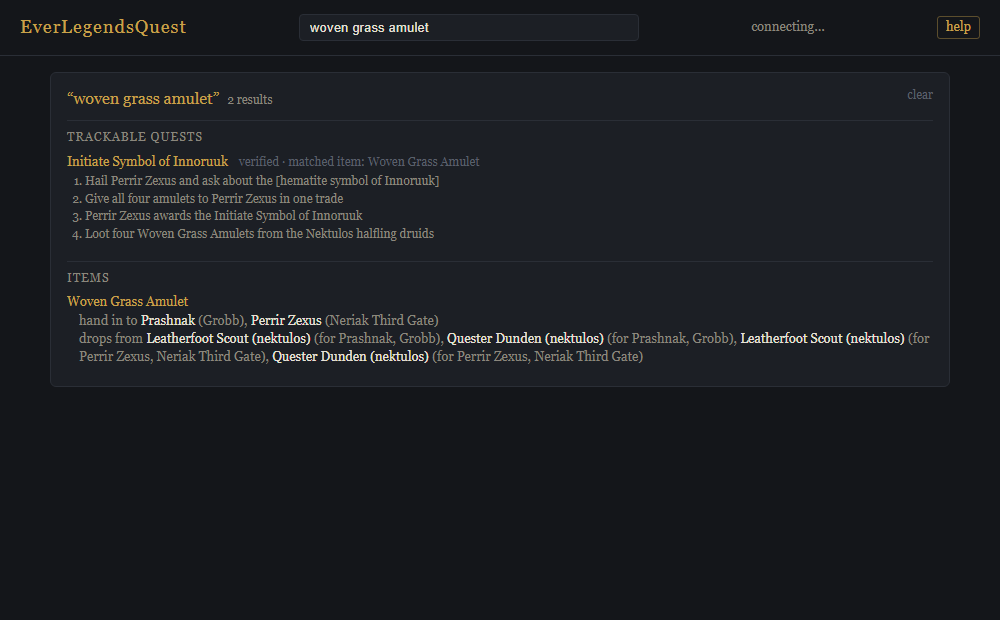
The search box in the header looks through items, NPCs and trackable quests at once. Results are grouped:
- Trackable quests: name, zone, whether it is verified, every step, and why it matched (its name, a step, or an NPC or item inside it).
- Items: who takes the item in a hand-in, who gives it as a reward, which mobs drop it (and for which quest), and which merchants sell it.
- NPCs: the same rows as the zone list with the zone added, so you get the
/loc, the Find category and the hand-ins from anywhere. Dialogue keywords and chain partners match too.
Spelling differences between the catalog and the game (apostrophes, hyphens) are ignored. Exact names come first. You can link straight to a search with ?q=… in the page address.
At the bottom of every result list is Tell us what you know. If what you searched for is missing or wrong, that link opens a missing-data report with your search already filled in.
Sharing (uploads)
Every quest definition in this project has to be proven against real EverQuest Legends logs before it is marked verified. That proof comes from players who choose to share. During the closed beta the tracker asks signed-in players to turn it on (a green card on the tracker page, with a Not now that hides it for a week); it never turns itself on. Sharing is off until you click share in the header, and one click on stop turns it off again; nothing queued is sent afterwards.
What is sent when sharing is on
- Fingerprint hits: which quest fingerprint fired, in which zone, when. No text.
- Quest-shaped log lines the tracker already recognised: NPC dialogue with bracketed keywords, hails, turn-ins, trade completions, loot, kills, zone changes, faction lines, purchases, level-ups, class hints. Your character names are replaced by
$name, the text is capped, and the server refuses anything that looks like a tell. - The flags you set and NPC sightings (NPC name, zone, time).
What is never sent
- Your chat: tells, group, guild, raid, shout, auction, OOC, channels. The tracker does not even record them.
- What you type, character names, raw log text or files, account or server names, your database or quest progress.
- Your email or anything from your account. Uploads are stored under an anonymous install id.
Verified vs. track all
A quest is verified when its fingerprints have been seen firing in real EQL logs. Unverified quests were written from catalog data and educated guesses; they usually work, but a step can misfire or never trigger. By default only verified quests drive tracking. Turn on Track all (companion window checkbox, or track all in the header) to track everything, which is also how you help verify new quests when sharing is on. The setting is remembered.
Chat filters (one-time, in game)
The game writes to the log every message category that is not set to Hide in Options → Filters, whatever chat window shows it. Filters are stored per character on the server, so this is set once per character in game and cannot be done by the app. If a category the tracker needs is hidden, the tracker shows a red Chat filters need a change box on the character, worked out from what is and is not reaching the log.
Leave on Show: NPC speech and others' say (quest dialogue), Loot and Money (collect steps), Experience and Skills (level and class detection), your Spells (class detection), and anything labelled faction, task or quest. Safe to Hide: others' melee hits and misses, pet melee, damage shields, others' spells and songs, critical hits, dice rolls, /who results. If you want a quiet window, make a new chat window, tick those categories there and untick them in the main window; whatever is ticked anywhere still reaches the log.
Frontier quests
The catalog knows what 1,500 NPCs want and say, but only a handful of quests are written out step by step. Frontier quests close that gap while you play. When you hail a catalogued NPC and their reply matches what the catalog says they say, the catalog has just been proven right about them, and the app drafts a trackable quest from their hand-ins on the spot: talk to the NPC, collect the items, hand them in, hear the thank-you. It is tracked like a verified quest immediately and carries a dashed frontier tag in your quest list.
- One draft per hand-in. An NPC with three hand-ins gets three frontier quests; each completes only on its own turn-in. Hand-ins the catalog only knows by item number cannot be drafted.
- Nothing to do on your part. Drafts appear and arm from the same NPC line; they show up in search and count as trackable quests.
- With sharing on, your draft becomes a candidate. The server keeps candidates on a staging list. Once two different players have produced the same candidate (or its opening line has fired for two players), it is accepted automatically as a verified quest and reaches everyone on the next sync, replacing the local draft. Other candidates wait for the curators, who can accept, hold or reject them. Wording differences of a word or two between two players' drafts still count as the same candidate.
- Close-enough matching. Verified dialogue lines also tolerate a changed or dropped word, so a small server-side rewording does not silently break a quest.
Reporting problems and data
The catalog started from a classic-era database and EverQuest Legends differs from it in many places. The fastest way to fix that is for players to tell us. There are three kinds of report, all reached from the tracker page:
- Problem / bug: report a problem in the header. Something crashed, tracked wrongly, or looks broken. Say what happened, what you expected, and what you were doing in game.
- Bad data: the report button on an NPC row in quests in this zone or in search results. Wrong
/loc, wrong items or counts, wrong dialogue, wrong zone, a renamed NPC. If you know the correct value, write it. - Missing data: Tell us what you know under any search result. An NPC, item or quest the catalog does not have. NPC name and zone,
/loc, what they ask for and give, the exact dialogue, and any log lines you can paste all help.
Each form has an Attach diagnostics box, ticked by default. It adds the tracker's last 60 log lines and the last 30 game-log lines the tracker recognised, which is usually what makes a report actionable. You can untick it.
What a report contains
- Your text, the kind of report, what it is about (the NPC, zone or search), and the client version.
- Environment: operating system, how long the tracker has been running, whether you are signed in, whether uploads and track all are on, and how many quests and catalog entries you have.
- With diagnostics: the two log excerpts described above. Before anything leaves your machine, your character names are replaced by
$name, your Windows user name in file paths by%USER%, and any line that looks like a tell is dropped. The server drops tells again on receipt. - Never: your email or account, the game's account or server names, chat, or raw log files. Reports carry only this install's anonymous id.
Crash and error reports
If the tracker crashes, it writes a crash-<time>.json file into its data folder and sends the same report to the server (with the scrubbing above), then exits; the companion window notices and closes. Non-fatal errors, such as a failed sync, are reported the same way, at most ten distinct ones per hour. Ordinary offline conditions (no connection, server unreachable) are not reported at all.
Crash reports include the error message and stack trace, the environment block, and the two log excerpts. They contain nothing you typed and nothing that identifies you beyond the install id.
The website
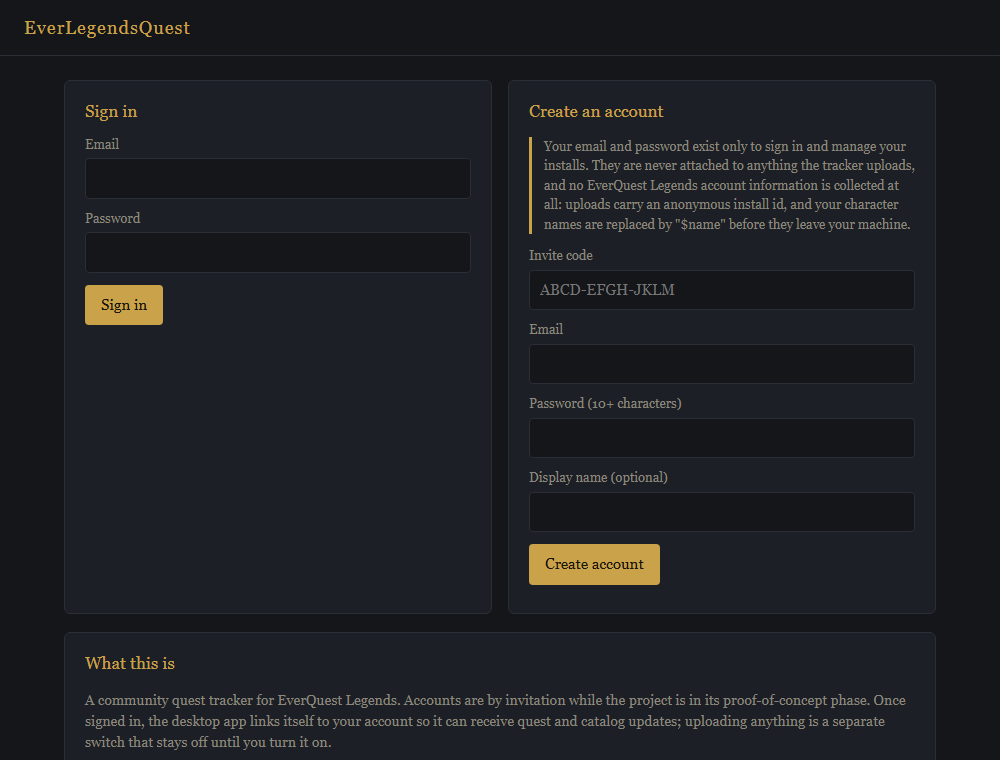
- Sign in: the same account the app uses. Create an account needs an invite code.
- Account: lists your installs (each PC running the app) with when they were last seen and how much they uploaded. revoke cuts an install off immediately; it can sign in again to get a new key.
- Admin (project owner and helpers): create and revoke invite codes, see users and installs, and watch which fingerprints have been corroborated by enough different installs to become verified.
Troubleshooting
| Symptom | What to do |
|---|---|
| Page says disconnected, retrying | The tracker is not running. Launch EverLegendsQuest from the Start Menu; the page reconnects by itself. |
| No character logs yet after playing | Chat logging is off in the game. Close the game, click Enable logging on the setup card, start the game again. If the card says the game is running, close it first: the game rewrites its ini file on exit. |
| EverQuest Legends not found | The game is not in the default Daybreak folder and not in the registry. Install the game, or start the tracker with --log-dir pointing at its Logs folder. |
| Quests do not progress | Check recent at the bottom of the character panel. If lines are arriving, the quest may be unverified: turn on Track all. If nothing arrives, make sure the in-game chat filters send NPC dialogue, loot and faction messages to a window (they only reach the log if some window shows them). |
| A quest tracked wrongly | Turn Track all off to go back to verified quests only. With sharing on, your log is what helps fix the definition. |
| Companion window gone but tracker still running | Launching the app again reopens the page; use quit in the header, or Task Manager → EverLegendsQuest.exe. |
| Sign-in fails | Wrong email or password, or an invite code that is expired or already used. Too many attempts in a minute are refused briefly. |
Keyboard shortcuts
| / | Jump to the search box |
| Esc | Clear the search |
| Ctrl+C | Stop the tracker when running it from a terminal (bun track) |
Where things live
- Program:
%LOCALAPPDATA%\Programs\EverLegendsQuest(uninstall from Windows Settings → Apps, orunins000.exethere). - Your data:
%LOCALAPPDATA%\EverLegendsQuest\client.db(quest progress, settings, the sign-in key) andclient.log(the tracker's own log, handy when reporting a problem). Uninstalling keeps this folder on purpose; delete it by hand to start over. - The game's chat logs:
…\EverQuest Legends\Logs\eqlog_<Character>_<server>.txt. The tracker only reads them. - The tracker page:
http://127.0.0.1:7777/, reachable only from this computer.